Install StreamWriter Studio on Windows
Installed in a few steps and activated with your license key – for Windows 10 and 11.
Installation in 6 steps
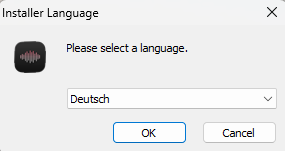
Run the setup & choose a language. Double-click the downloaded StreamWriterStudioSetup.exe. Choose your language and click OK.
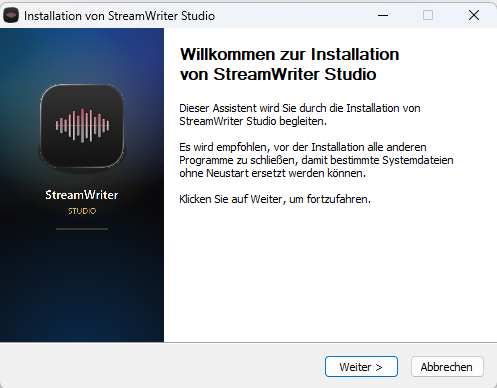
Welcome. The setup wizard greets you – click Next.
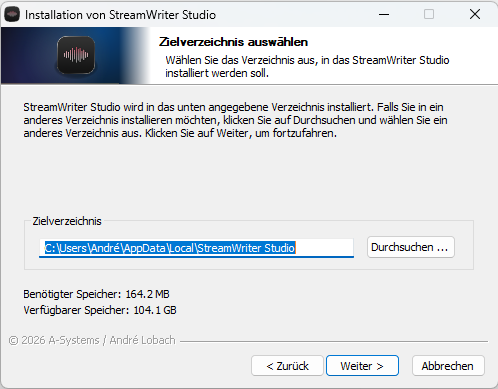
Confirm the destination folder. The suggested folder works for most people (about 165 MB). Click Next – or choose a folder of your own via Browse….
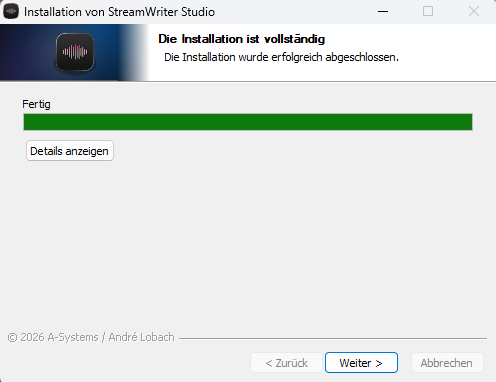
Installation in progress. Wait until the message that installation is complete appears, then click Next.
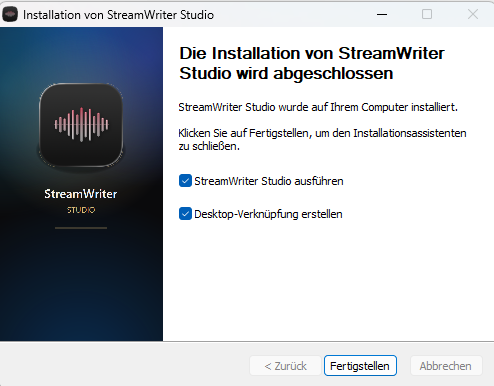
Finish. Leave the checkboxes for Run StreamWriter Studio and Create a desktop shortcut ticked and click Finish.
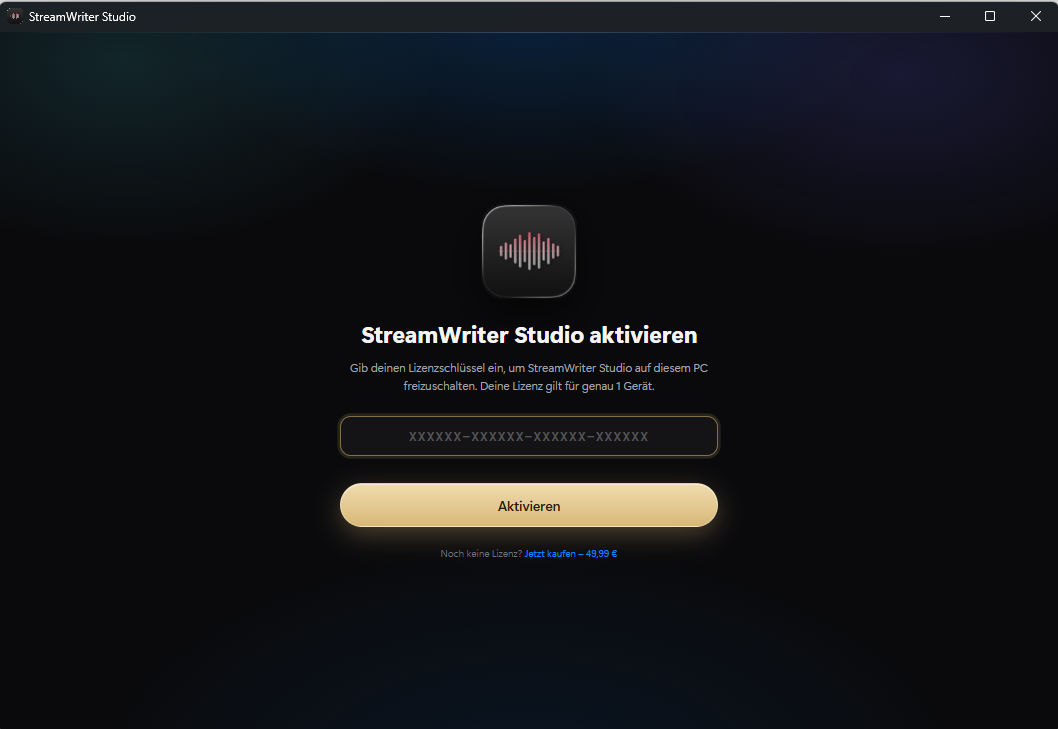
Enter your license key. On first launch the activation screen opens. Paste your license key from the purchase email and click Activate. The license covers 1 device – done! 🎉